

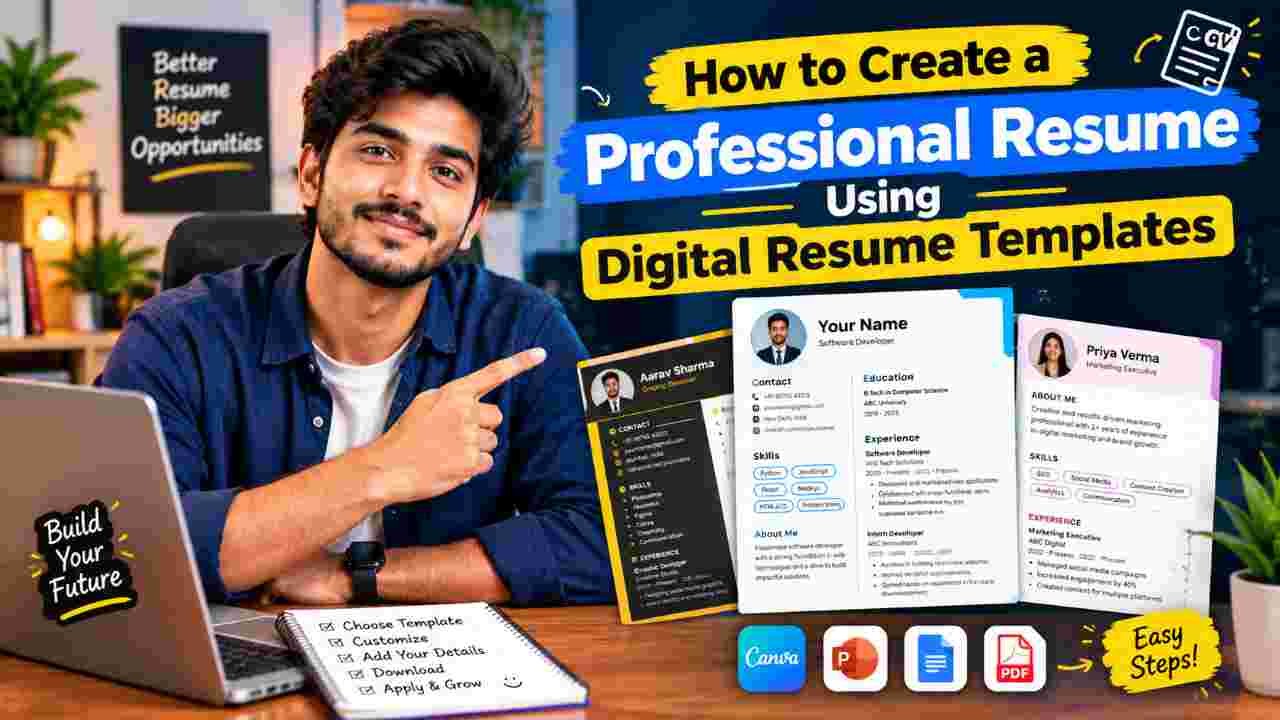
A strong resume still opens doors. In 2026, the difference between a resume that gets ignored and one that lands interviews often comes down to two things: clear, relevant content and clean, machine-readable formatting. Digital resume templates make both easier. They give you a professional structure so you can focus on what actually matters—your experience, skills, and results—instead of fighting layout problems.
This guide walks you through the complete process of choosing, customizing, and finalizing a professional resume using digital templates.
Why Digital Resume Templates Work Better Than Starting from Scratch
Digital templates solve three common problems:
- They enforce consistent spacing, fonts, and hierarchy so the document looks polished.
- Most modern templates are designed with Applicant Tracking Systems (ATS) in mind, reducing the chance your resume gets rejected before a human sees it.
- They save hours of formatting work and let you reuse a strong base version for multiple applications.
Popular places to find quality templates include Canva, Google Docs, Microsoft Word, and dedicated resume builders such as Resume.io, Teal, Novoresume, and similar platforms. The key is choosing the right type of template for the jobs you are targeting.
Step 1: Choose the Right Template
Not every attractive template is useful.
For most corporate, tech, finance, healthcare, and general professional roles, prioritize ATS-friendly designs:
- Single-column layout
- Standard section headings (Summary, Experience, Education, Skills)
- Clean sans-serif fonts (Arial, Calibri, Helvetica)
- No sidebars, icons, skill bars, tables, or graphics
- Plenty of white space and clear visual hierarchy
For creative roles (design, marketing, some startups) you can use more visual templates—but only when you know a human will review the file first, or when you also submit a clean ATS version.
Recommended starting points in 2026:
- Simple or “Minimal” templates in Canva (search specifically for “simple resume” or “ATS resume”)
- Built-in chronological or hybrid templates in Google Docs or Microsoft Word
- ATS-tested templates from specialized resume builders
Avoid heavily designed two-column or infographic-style templates if you will apply through online portals.
Step 2: Gather Your Information Before You Open the Template
Prepare these elements first:
- Full professional contact details (name, phone, email, LinkedIn, city/state or remote preference, optional portfolio link)
- A concise professional summary (3–5 lines)
- Work experience with dates, job titles, company names, and quantifiable achievements
- Education details
- Skills (hard skills first, then relevant soft skills)
- Certifications, languages, or other relevant sections
Having this ready prevents you from staring at a blank template.
Step 3: Customize the Template Step by Step
- Open or download the template and replace the placeholder text with your information.
- Update the header with your real contact details. Keep it simple—plain text works best for ATS.
- Write or refine your professional summary. Focus on your strongest value and the type of role you want.
- Fill the Experience section in reverse-chronological order. Use strong action verbs and quantify results whenever possible (e.g., “Increased conversion rate by 27%” instead of “Responsible for marketing”).
- Add Education, Skills, and any extra sections. Keep skills relevant to the jobs you are applying for.
- Adjust spacing and fonts only within safe limits. Stick to 10–12 pt for body text and consistent section headings.
- Tailor for each application. Mirror important keywords from the job description naturally in your summary, skills, and bullet points.
Step 4: Optimize for ATS and Human Readers
- Use standard section titles.
- Avoid text boxes, tables for layout, headers/footers with important information, and images.
- Save one version as a .docx file (often preferred by ATS) and another as a clean, text-based PDF for human review.
- Test readability: open the PDF and try selecting the text. If you cannot highlight and copy the text, the ATS will struggle too.
- Run a quick check with free ATS scanners if available, or simply paste the content into a plain text document to see how it reads.
Step 5: Final Polish and Export
- Proofread carefully for spelling, grammar, and consistency in dates and punctuation.
- Ask someone else to review it, or read it aloud.
- Keep most resumes to one page if you have under 10 years of experience; two pages is acceptable for more senior roles.
- Name the file professionally: FirstName_LastName_Resume.pdf
- Export and double-check the final version on both desktop and mobile.
Common Mistakes to Avoid
- Choosing a beautiful but multi-column or graphic-heavy template for online applications
- Listing duties instead of achievements
- Using the same generic resume for every job
- Including outdated or irrelevant experience
- Forgetting to update contact information or LinkedIn URL
- Overusing colors, icons, or decorative lines
Frequently Asked Questions
Are Canva resume templates ATS-friendly?
Some are. Simple, single-column, minimalist templates can pass most systems when exported correctly. Fancy or multi-column designs often fail. Always test or choose templates specifically labeled simple or ATS-friendly.
Should I use a free or paid template?
Free templates from Google Docs, Word, or Canva’s simple collection are often excellent. Paid builders can offer better guidance, AI rewriting, and more polished designs if you want extra support.
Is a PDF or Word document better?
Submit .docx when the application system allows it for maximum ATS compatibility. Use a clean PDF when the job posting requests it or when a human will open the file directly.
How often should I update my resume template?
Review and refresh your master version every few months or whenever you gain significant new experience, skills, or results.
Do I need different templates for different industries?
You usually need only one strong master template. Customize the content and keywords for each application rather than creating completely different designs.
Final Thoughts
Digital resume templates remove the technical barriers so you can concentrate on substance. Choose a clean, ATS-compatible design, fill it with clear and quantified achievements, tailor it to each role, and export carefully. A professional-looking resume that both machines and people can read quickly remains one of the highest-leverage tools in any job search.
Start with a simple template today, invest the time to make the content strong, and you will have a resume that works harder for you.